Yank five lines from a 120-column tmux pane inside WSL2, paste them into a Python file or YAML manifest in your editor, and your linter immediately flags eighty trailing spaces. Copy a command from your shell history, paste it into bash, and the shell halts with command not found: \u00a0... because your prompt injected an invisible non-breaking space. Copy a multi-line snippet back from Windows, and bare carriage returns mangle your terminal line breaks.
Standard Linux clipboard utilities like xclip or wl-copy fail out of the box in headless WSL2 because there is no X11 or Wayland display server. The standard advice online is piping tmux selections directly to /mnt/c/WINDOWS/system32/clip.exe. That works for about ten minutes, until the trailing whitespace, broken prompt glyphs, and line ending mismatches turn daily development into death by a thousand paper cuts.
A clean setup needs a bidirectional pipeline: sanitize text on the way out, normalize line endings on the way in, and complete in single-digit milliseconds so mouse dragging never stutters.
The 30-Second Setup: If your terminal clipboard is broken right now and you just want the working code: grab
tmux-copy-wslandtmux-paste-wsl, drop them into~/.local/bin/, make them executable, and append the tmux bindings to~/.tmux.conf. If you want to understand why standard pipes corrupt prompt glyphs, freeze server loops, and leak clipboard history, read the breakdown below.
The three invisible characters breaking your pastes
Before writing any configuration, here is the exact garbage raw terminal copying produces when you drag a cursor across a tmux pane:
- Fixed-width column padding: tmux allocates fixed columns for each pane. If your pane is 120 columns wide and you yank a 25-character command, tmux hands your clipboard 95 trailing spaces. Paste that into YAML, Python, or markdown, and you get immediate indentation bugs or noisy git diffs.
- Prompt glyphs and non-breaking spaces: Modern prompt engines (
omp, Starship, Powerline) use non-breaking spaces (\u00a0,\u202f,\u2007) to keep prompt segments contiguous, along with zero-width characters (\u200bthrough\u200d,\ufeff) for icon alignment. If you copy a command from your terminal scrollback, those code points come with it. Bash halts withcommand not found: \u00a0...or fails with mysterious token errors. - Carriage returns (
\r\n): Text copied on the Windows host carries CRLF line breaks. In a Linux shell, bare carriage returns cause cursor jumps, broken heredocs, and script parse failures.
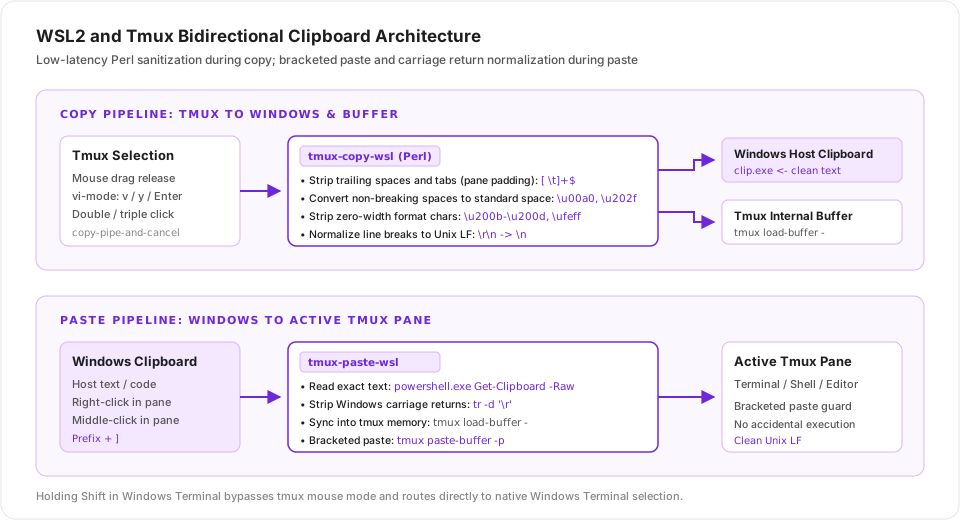
Bidirectional data flow: low-latency Perl sanitization on copy, bracketed paste and carriage return normalization on paste.
Sanitizing on copy: why Perl beats Python and sed
The copy helper sits directly inside the mouse drag and vi-yank loop. If the sanitizer takes 45 milliseconds to start, every single mouse release stutters.
I tried Python first. It took 35 to 50 milliseconds just to boot the runtime and import standard libraries. On every mouse release, that latency was clearly perceptible: it felt like dragging the cursor through wet cement. Standard POSIX sed and awk start in under 2 milliseconds, but POSIX sed lacks consistent multi-byte Unicode range matching across different locales, frequently mangling UTF-8 sequences or failing on multi-byte code point ranges like \x{200b} through \x{200d}.
Perl is pre-installed on virtually every Linux distribution (including stock Ubuntu WSL2 images), boots in roughly 2 milliseconds, and handles UTF-8 natively with -CSD.
Save this script as ~/.local/bin/tmux-copy-wsl:
#!/usr/bin/env bash
# tmux-copy-wsl: Sanitize text yanked from tmux/omp and copy to Windows clipboard + tmux buffer
set -eo pipefail

# Prioritize canonical system path to avoid PATH hijacking from weak directories
if [ -x "/mnt/c/WINDOWS/system32/clip.exe" ]; then
    CLIP_CMD="/mnt/c/WINDOWS/system32/clip.exe"
else
    CLIP_CMD="$(command -v clip.exe 2>/dev/null || true)"
fi

# Sanitize text from stdin via Perl (UTF-8 native, fast startup):
# 1. Normalize line endings (\r\n and \r to Unix \n)
# 2. Strip zero-width characters (\u200b, \u200c, \u200d, \ufeff)
# 3. Convert non-breaking spaces (\u00a0, \u202f, \u2007) to standard spaces
# 4. Strip redundant trailing spaces and tabs from each line (fixes tmux pane padding)
# 5. Normalize trailing blank lines to a single newline
#
# Note on command substitution: bash $(...) unconditionally strips trailing newlines.
# Appending a sentinel character ('x') and stripping it afterwards preserves exact newlines.
cleaned=$(perl -CSD -0777 -pe '
    s/\r\n/\n/g;
    s/\r/\n/g;
    s/[\x{200b}-\x{200d}\x{feff}]//g;
    s/[\x{00a0}\x{202f}\x{2007}]/ /g;
    s/[ \t]+$//mg;
    s/\n+$/\n/;
' 2>/dev/null || cat; printf x)
cleaned="${cleaned%x}"

if [ -n "$cleaned" ]; then
    printf '%s' "$cleaned" | tmux load-buffer - 2>/dev/null || true
    if [ -n "$CLIP_CMD" ] && [ -x "$CLIP_CMD" ]; then
        printf '%s' "$cleaned" | "$CLIP_CMD" 2>/dev/null || true
    fi
fi
Make it executable:
chmod +x ~/.local/bin/tmux-copy-wsl
A subtle footgun with bash command substitution: var=$(...) unconditionally strips all trailing newlines. If you yank a whole line with TripleClick or copy multiple lines, Perl normalizes the trailing newline, and then bash immediately deletes it. The fix is the classic sentinel character idiom: append an x inside the subshell, then strip it with ${cleaned%x}. Because x is the final character, bash leaves every preceding newline intact.
Breaking down the Perl flags and substitutions:
-CSD: Tells Perl that standard input, standard output, and standard error streams are encoded in UTF-8. Without this flag, Perl treats multi-byte characters as raw byte sequences, corrupting multi-byte glyphs.-0777: Enables slurping mode so the entire input is ingested into memory as a single string, allowing multiline matching (/m) and cross-line replacements.s/[\x{200b}-\x{200d}\x{feff}]//g: Deletes zero-width spaces, non-joiners, joiners, and byte order marks while keeping legitimate multi-byte characters (such as accented letters or Nerd Font icons) untouched.s/[\x{00a0}\x{202f}\x{2007}]/ /g: Replaces non-breaking space variants with plain ASCII space (0x20).s/[ \t]+$//mg: Strips trailing spaces and tabs before each newline, stripping tmux column padding without touching indentation at the beginning of lines.
Pasting back from Windows: PowerShell and bracketed paste
Reading the Windows clipboard from inside WSL2 requires querying the Win32 clipboard API through powershell.exe.
The naive one-liner most people use:
powershell.exe -Command "Get-Clipboard"
This breaks in three distinct ways:
- Line arrays: Without
-Raw, PowerShell splits multi-line text into an array of strings, mangling formatting. - Silent ASCII degradation: On Windows 10 and 11, Windows PowerShell 5.1 defaults
$OutputEncodingto US-ASCII when output is redirected across a standard Linux pipe. Any non-ASCII character (Vietnamese accents, emoji, smart quotes) turns into a literal question mark (?). - Server-wide freezes: In tmux,
run-shellruns synchronously by default. If PowerShell hangs on host clipboard mutex contention or a virus scan, the entire tmux server stops processing keystrokes across all panes and windows.
Save this hardened script as ~/.local/bin/tmux-paste-wsl:
#!/usr/bin/env bash
# tmux-paste-wsl: Read text from Windows clipboard and paste into active tmux pane
set -eo pipefail

# Prioritize canonical Windows PowerShell path
if [ -x "/mnt/c/WINDOWS/System32/WindowsPowerShell/v1.0/powershell.exe" ]; then
    POWERSHELL_CMD="/mnt/c/WINDOWS/System32/WindowsPowerShell/v1.0/powershell.exe"
else
    POWERSHELL_CMD="$(command -v powershell.exe 2>/dev/null || true)"
fi

# Query host clipboard with a hard timeout to prevent blocking the tmux server event loop.
# 1. Force PowerShell OutputEncoding to UTF-8 to prevent non-ASCII characters from becoming '?'.
# 2. Normalize CRLF and bare CR to Unix LF.
# 3. Repeatedly strip bracketed paste delimiters (\e[200~, \e[201~, \x9b200~, \x9b201~) to neutralize nested injections.
# 4. Strip \e[?2004l sequences to prevent payloads from deactivating terminal bracketed paste mode.
if [ -n "$POWERSHELL_CMD" ] && [ -x "$POWERSHELL_CMD" ]; then
    timeout 2s "$POWERSHELL_CMD" -NoProfile -Command "
        [Console]::OutputEncoding = [System.Text.Encoding]::UTF8;
        Get-Clipboard -Raw
    " 2>/dev/null \
        | perl -pe '
            s/\r\n?/\n/g;
            1 while s/(?:\x1b\[|\x9b|\xc2\x9b)20[01]~//g;
            s/(?:\x1b\[|\x9b|\xc2\x9b)\?2004[lh]//g;
        ' \
        | tmux load-buffer - 2>/dev/null || true
fi

# Paste with bracketed paste (-p) explicitly into the originating pane
tmux paste-buffer -p -t "${TMUX_PANE:-.}" 2>/dev/null || true
Make it executable:
chmod +x ~/.local/bin/tmux-paste-wsl
Security note on bracketed paste: The
-pflag ontmux paste-buffer -pis an essential terminal security control. It wraps pasted text in ANSI bracketed paste escape sequences (\e[200~and\e[201~). If you paste a multi-line snippet or code with embedded newlines, bracketed paste prevents the shell from executing those lines as immediate shell commands before you can inspect them.
Wiring it into ~/.tmux.conf
With the helper scripts in place, add the following section to your ~/.tmux.conf:
# ==============================================================================
# WSL2 & Windows Host Mouse Mode and Clipboard Integration
# ==============================================================================

# Enable mouse mode and OSC 52 terminal clipboard integration
set -g mouse on
set -s set-clipboard on
setw -g mode-keys vi

# Vi copy-mode keybindings for manual selection
bind-key -T copy-mode-vi v send-keys -X begin-selection
bind-key -T copy-mode-vi C-v send-keys -X rectangle-toggle

# Yank with 'y' or 'Enter' using sanitized copy filter to Windows clipboard
bind-key -T copy-mode-vi y send-keys -X copy-pipe-and-cancel "tmux-copy-wsl"
unbind-key -T copy-mode-vi Enter
bind-key -T copy-mode-vi Enter send-keys -X copy-pipe-and-cancel "tmux-copy-wsl"

# Mouse drag selection copies immediately upon release and syncs to Windows clipboard
bind-key -T copy-mode-vi MouseDragEnd1Pane send-keys -X copy-pipe-and-cancel "tmux-copy-wsl"
bind-key -T copy-mode MouseDragEnd1Pane send-keys -X copy-pipe-and-cancel "tmux-copy-wsl"

# Double-click (copy word) and Triple-click (copy line) in copy-mode
bind-key -T copy-mode-vi DoubleClick1Pane select-pane \; send-keys -X select-word \; run-shell -d 0.3 \; send-keys -X copy-pipe-and-cancel "tmux-copy-wsl"
bind-key -T copy-mode-vi TripleClick1Pane select-pane \; send-keys -X select-line \; run-shell -d 0.3 \; send-keys -X copy-pipe-and-cancel "tmux-copy-wsl"
bind-key -T copy-mode DoubleClick1Pane select-pane \; send-keys -X select-word \; run-shell -d 0.3 \; send-keys -X copy-pipe-and-cancel "tmux-copy-wsl"
bind-key -T copy-mode TripleClick1Pane select-pane \; send-keys -X select-line \; run-shell -d 0.3 \; send-keys -X copy-pipe-and-cancel "tmux-copy-wsl"

# Double-click (word) and Triple-click (line) from a normal pane (starts copy-mode and yanks)
bind-key -n DoubleClick1Pane select-pane -t = \; if-shell -F "#{||:#{pane_in_mode},#{mouse_any_flag}}" "send-keys -M" "copy-mode -H ; send-keys -X select-word ; run-shell -d 0.3 ; send-keys -X copy-pipe-and-cancel tmux-copy-wsl"
bind-key -n TripleClick1Pane select-pane -t = \; if-shell -F "#{||:#{pane_in_mode},#{mouse_any_flag}}" "send-keys -M" "copy-mode -H ; send-keys -X select-line ; run-shell -d 0.3 ; send-keys -X copy-pipe-and-cancel tmux-copy-wsl"

# Mouse paste: Middle-click (button 2) and Right-click (button 3) paste Windows clipboard
bind-key -n MouseDown2Pane select-pane -t = \; if-shell -F "#{||:#{pane_in_mode},#{mouse_any_flag}}" "send-keys -M" "run-shell -b tmux-paste-wsl"
bind-key -n MouseDown3Pane select-pane -t = \; if-shell -F "#{||:#{pane_in_mode},#{mouse_any_flag}}" "send-keys -M" "run-shell -b tmux-paste-wsl"

# Mouse paste while inside copy-mode cancels copy-mode and pastes
bind-key -T copy-mode-vi MouseDown2Pane send-keys -X cancel \; run-shell -b tmux-paste-wsl
bind-key -T copy-mode-vi MouseDown3Pane send-keys -X cancel \; run-shell -b tmux-paste-wsl
bind-key -T copy-mode MouseDown2Pane send-keys -X cancel \; run-shell -b tmux-paste-wsl
bind-key -T copy-mode MouseDown3Pane send-keys -X cancel \; run-shell -b tmux-paste-wsl

# Keyboard paste from Windows clipboard: Prefix + ]
bind-key ] run-shell -b tmux-paste-wsl
Reload tmux inside an active session:
tmux source-file ~/.tmux.conf
How the normal-mode click detection works
The double and triple click bindings for normal panes use an interesting tmux construct:
bind-key -n DoubleClick1Pane select-pane -t = \; if-shell -F "#{||:#{pane_in_mode},#{mouse_any_flag}}" "send-keys -M" "copy-mode -H ; send-keys -X select-word ; run-shell -d 0.3 ; send-keys -X copy-pipe-and-cancel tmux-copy-wsl"
Four moving parts make this work:
select-pane -t =: Activates the exact pane currently under the mouse pointer.if-shell -F "#{||:#{pane_in_mode},#{mouse_any_flag}}": Tests whether the pane is already in a special mode or running an application that captures mouse events (such asless,vim, orhtop). If so,send-keys -Mforwards the mouse event directly to the running application without interfering.copy-mode -H: Enters copy mode with the-Hflag to hide the top-right position indicator during rapid selection.run-shell -d 0.3: Introduces a 300-millisecond delay so tmux has time to visually highlight the selected word beforecopy-pipe-and-cancelcaptures the text and exits copy mode.
Security considerations: injection, timeouts, and clipboard history
Bridging an untrusted host clipboard to a shell running with user privileges requires defensive precautions:
1. Bracketed paste escape sequence injection & nested delimiters
Terminal emulators rely on bracketed paste delimiters (\e[200~ and \e[201~) to signal when input should be treated as literal text rather than typed commands. However, naive filtering presents two immediate evasion vectors:
- Nested Delimiter Smuggling: A simple single-pass substitution (
s/\x1b\[201~//g) is vulnerable to nesting. If an attacker crafts\e[\e[201~201~, stripping the inner token reconstructs\e[201~in the output stream. The sanitizer resolves this by wrapping substitution in a loop (1 while s/...//g). - 8-Bit C1 CSI Controls: In addition to the standard two-byte 7-bit escape (
\e[or\x1b[), terminal emulators support single-byte 8-bit C1 CSI sequences (\x9bor UTF-8\xc2\x9b). An attacker using\x9b201~bypasses filters that only look for\x1b[. The regex covers both variants. - Mode Deactivation (
\e[?2004l): Terminals track bracketed paste status using DEC Private Mode 2004. An escape sequence containing\e[?2004linstructs the terminal to turn off bracketed paste mode immediately. Stripping this sequence preserves terminal state.
2. PowerShell 5.1 default ASCII output encoding
On Windows 10 and 11, the built-in Windows PowerShell 5.1 host defaults $OutputEncoding to US-ASCII when output is redirected to a standard pipe. Without intervention, any non-ASCII characters copied on Windows (such as Vietnamese characters, accented text, smart quotes, or emoji) are converted to literal question marks (?). Setting [Console]::OutputEncoding = [System.Text.Encoding]::UTF8; inside the command guarantees full Unicode fidelity across the boundary.
3. Server-wide event loop lockups: synchronous vs background run-shell
In tmux, run-shell without the -b flag runs synchronously, halting the entire tmux server event loop until the invoked script exits. Because tmux-paste-wsl crosses the virtualization boundary into Windows PowerShell, any host clipboard mutex contention, disk spike, or antivirus scan would freeze all panes, windows, and attached sessions.
Two safeguards eliminate this risk:
- Keybindings use
run-shell -b, spawning the helper asynchronously so tmux continues handling user keystrokes. - The helper wraps PowerShell in
timeout 2s, ensuring a hung process is forcibly killed if the host does not respond within two seconds.
4. Child process bracketed paste support
tmux paste-buffer -p only wraps pasted text in bracketed paste sequences if the application running inside the pane has requested bracketed paste mode (such as modern bash with readline, zsh, fish, vim, or python). If you paste into a legacy application or raw shell prompt that does not enable mode 2004, the text is emitted raw.
5. WSL2 PATH precedence hijacking
WSL2 automatically imports Windows system folders into Linux $PATH. If an unprivileged user or cloned project creates a weak directory earlier in $PATH containing a mock clip.exe or powershell.exe, resolving via bare command -v executes the local script instead of the Windows host binary.
Checking /mnt/c/WINDOWS/system32/clip.exe and /mnt/c/WINDOWS/System32/WindowsPowerShell/v1.0/powershell.exe explicitly ensures only the genuine Windows system binaries are executed.
6. Windows Clipboard History (Win + V) and cloud synchronization
When you yank text into clip.exe, Windows adds that string to its clipboard. If you have Windows Clipboard History enabled, any sensitive strings (such as API keys, database passwords, or temporary tokens) are written to local host storage (%LOCALAPPDATA%\Microsoft\Windows\Clipboard). If cloud clipboard sync is turned on, those credentials are automatically uploaded to Microsoft cloud services and synced across other devices logged into your account.
Rule of thumb: For sensitive credentials or private keys, hold
Shiftwhile dragging to bypass tmux mouse capture and copy locally inside the terminal emulator, or clear your Windows clipboard history immediately after yanking.
Daily usage cheat sheet
| Action | Input | Behavior |
|---|---|---|
| Mouse Drag Selection | Left click and drag, release | Sanitizes selection and copies to both tmux buffer and Windows clipboard |
| Copy Single Word | Double-click word | Selects word, trims padding, and copies |
| Copy Full Line | Triple-click line | Selects line, strips trailing column spaces, and copies |
| Keyboard Yank | Prefix + [ -> v -> move -> y | Copies selection into Windows clipboard |
| Mouse Paste (Windows style) | Right-click in pane | Pastes Windows clipboard via bracketed paste |
| Mouse Paste (X11 style) | Middle-click in pane | Pastes Windows clipboard via bracketed paste |
| Keyboard Paste | Prefix + ] | Pastes Windows clipboard into current pane |
| Terminal Bypass | Hold Shift while selecting or clicking | Bypasses tmux mouse capture to use native Windows Terminal selection |
In the previous post on pane and window management, we looked at how to organize panes and navigate layouts quickly. Pairing those navigation keys with a sanitized clipboard pipeline eliminates the paper cuts of jumping between Windows editors and terminal shells inside WSL2.